
LegalOps360 User Guide
For in-house legal teams. About 10 minutes to read, 15 minutes to set up.
Download the guide (PDF)LegalOps360 helps a legal team track matters, check outside counsel invoices against its billing guidelines, and review contracts against compliance frameworks. AI assists the analysis. A person always makes the final decision.
1. Get started
- Go to legalops360.ai and choose Start Free Trial.
- Enter your work email, a password, and your organization name. Your organization is created automatically and you become its administrator.
- Sign in. You land in Matters. The navigation bar gives you Matters, Vendors, E-Billing, Compliance, Analytics and Settings.
Invite your team: Settings, then Users. Enter an email, choose a role, and send the invite.
Everything you add belongs to your organization only. Other organizations cannot see it.
2. Matters
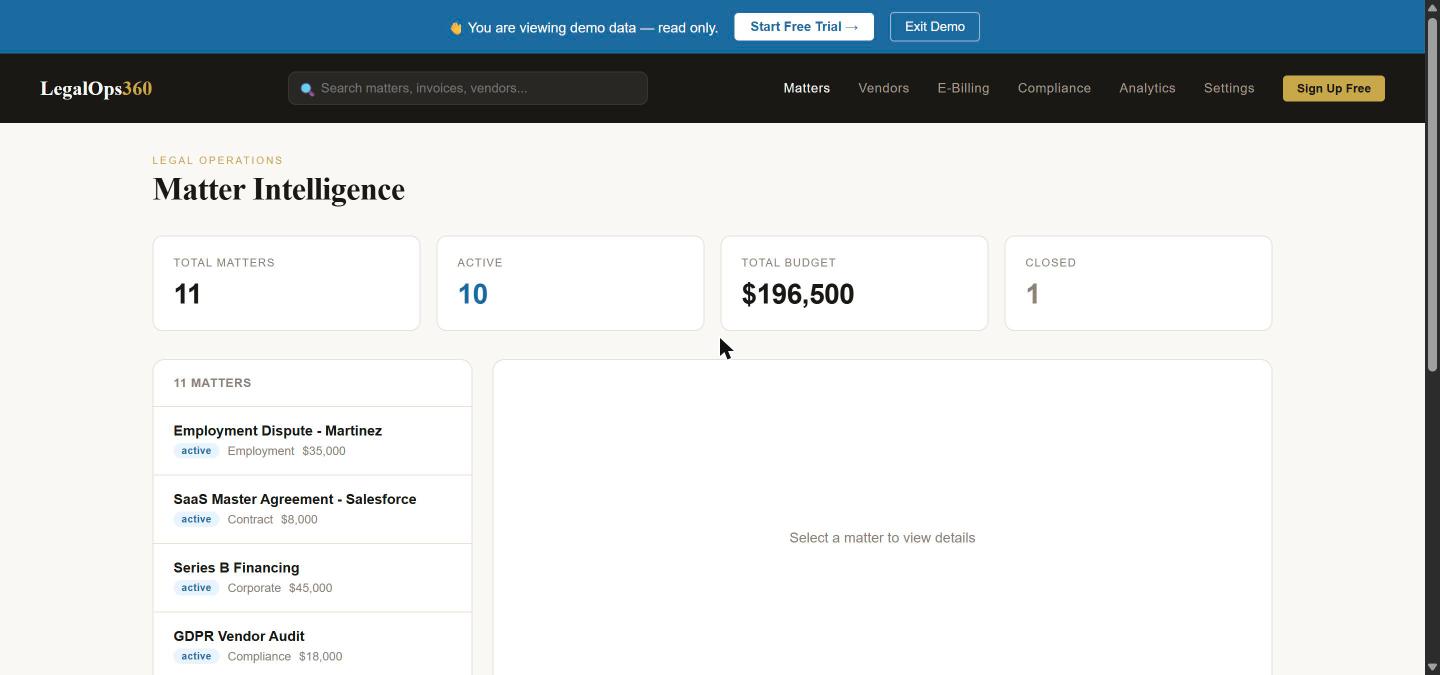
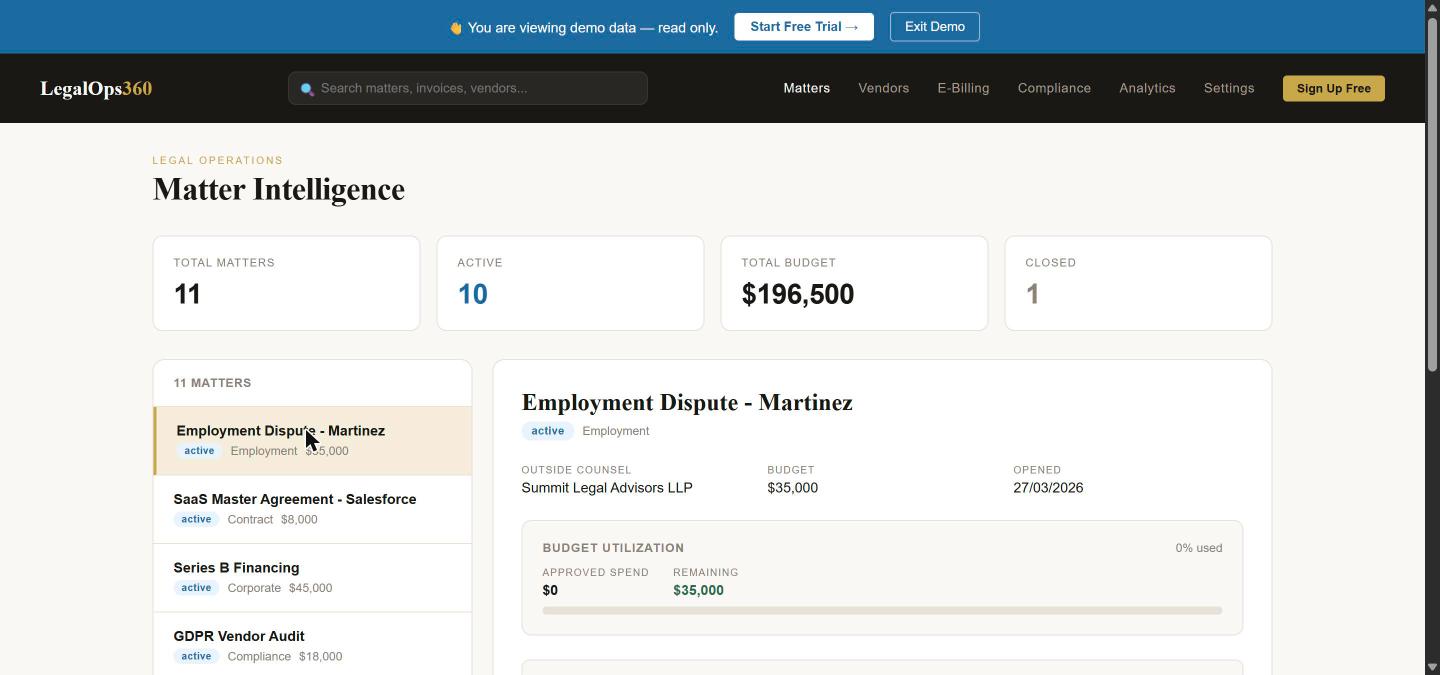
Matters is where you track legal work and its budget.
- Choose + Add Matter.
- Fill in Matter Name (required), Type, Status, Outside Counsel, Budget and a Description.
- Save. The matter appears in the list. Select it to see details and linked invoices, and to Edit or Close it.
3. Vendors and internal counsel
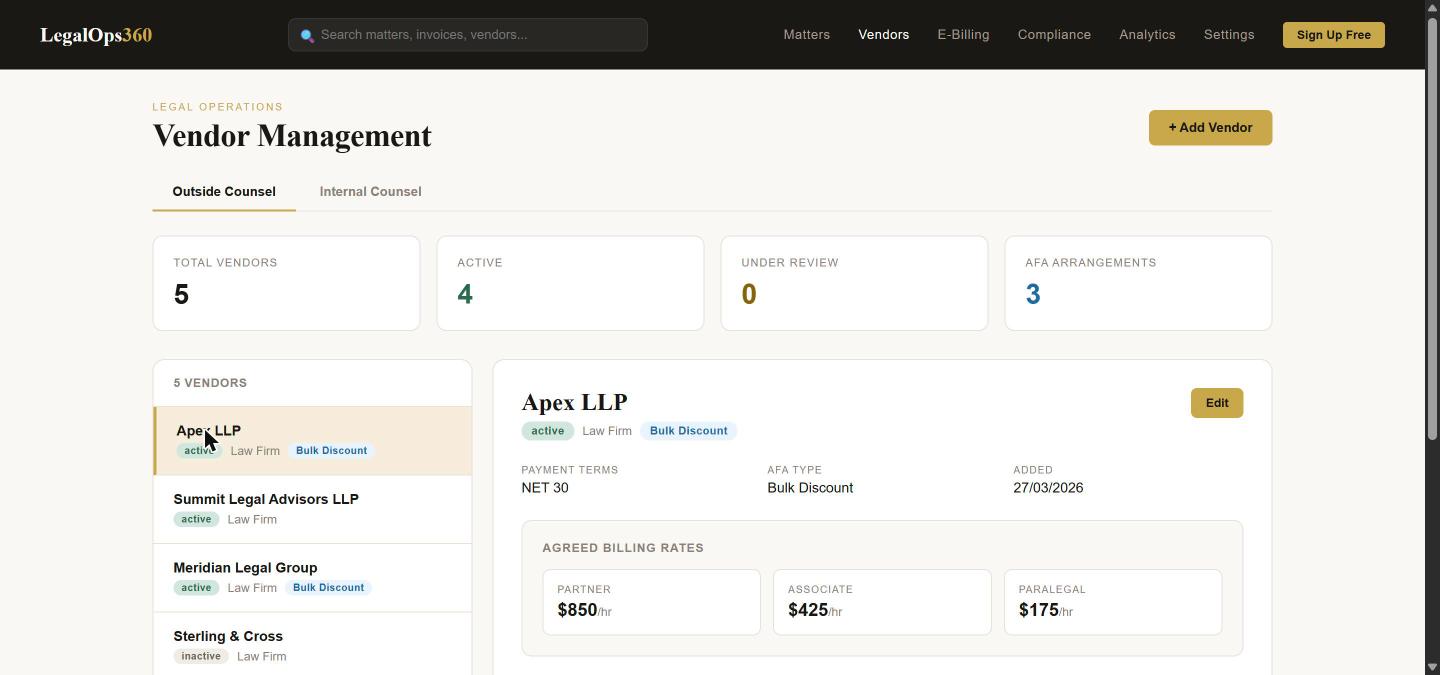
Outside counsel (law firms): Vendors, then Outside Counsel, then + Add Vendor. Record the firm, payment terms, any alternative fee arrangement (AFA), and rates for partner, associate and paralegal. These rates support invoice checks.
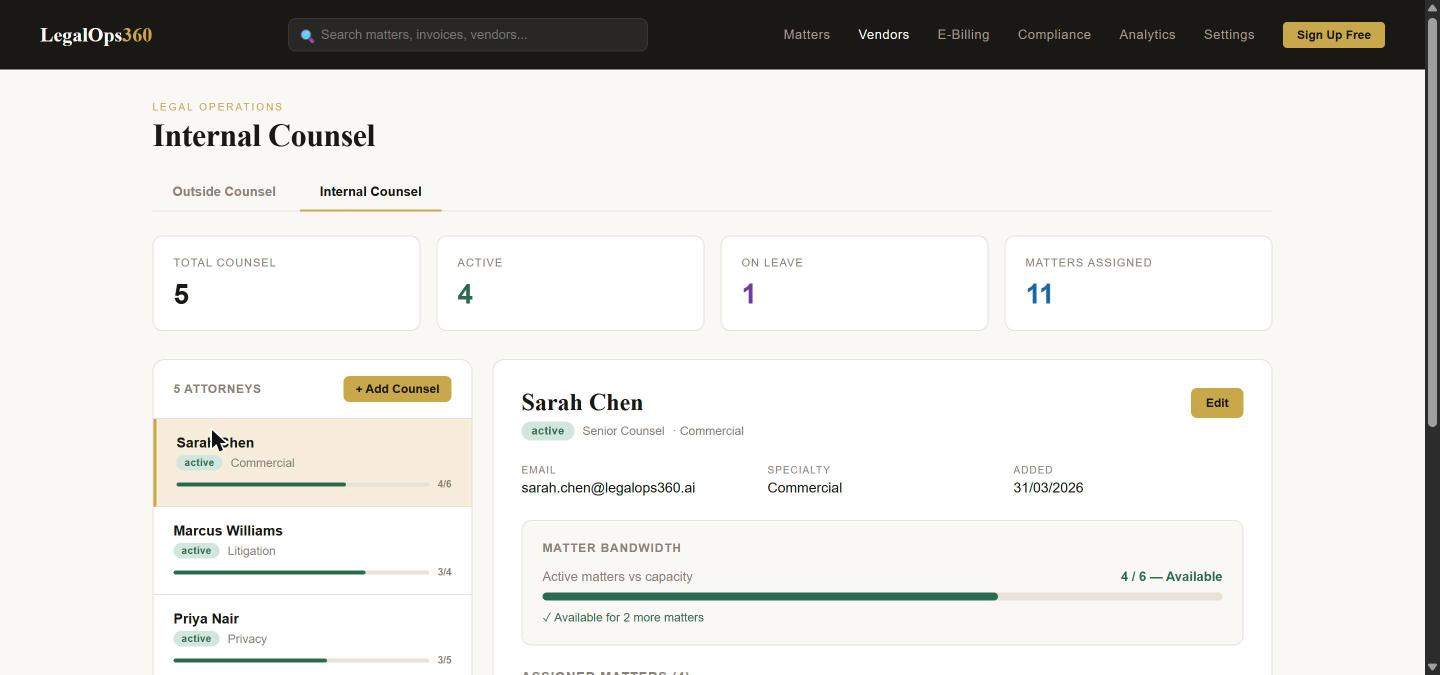
Internal counsel (your own attorneys): Vendors, then Internal Counsel, then + Add Counsel. Enter name, title, email, specialty, status and the maximum number of matters that person should hold. The list shows each attorney's workload against that maximum.
4. E-Billing: check an invoice
Upload one invoice (PDF)
E-Billing reviews outside counsel invoices against your billing guidelines before you approve payment.
- E-Billing, then Upload Invoice, and choose the PDF. It must be a text-based PDF you can select text in, not a scan or a photo.
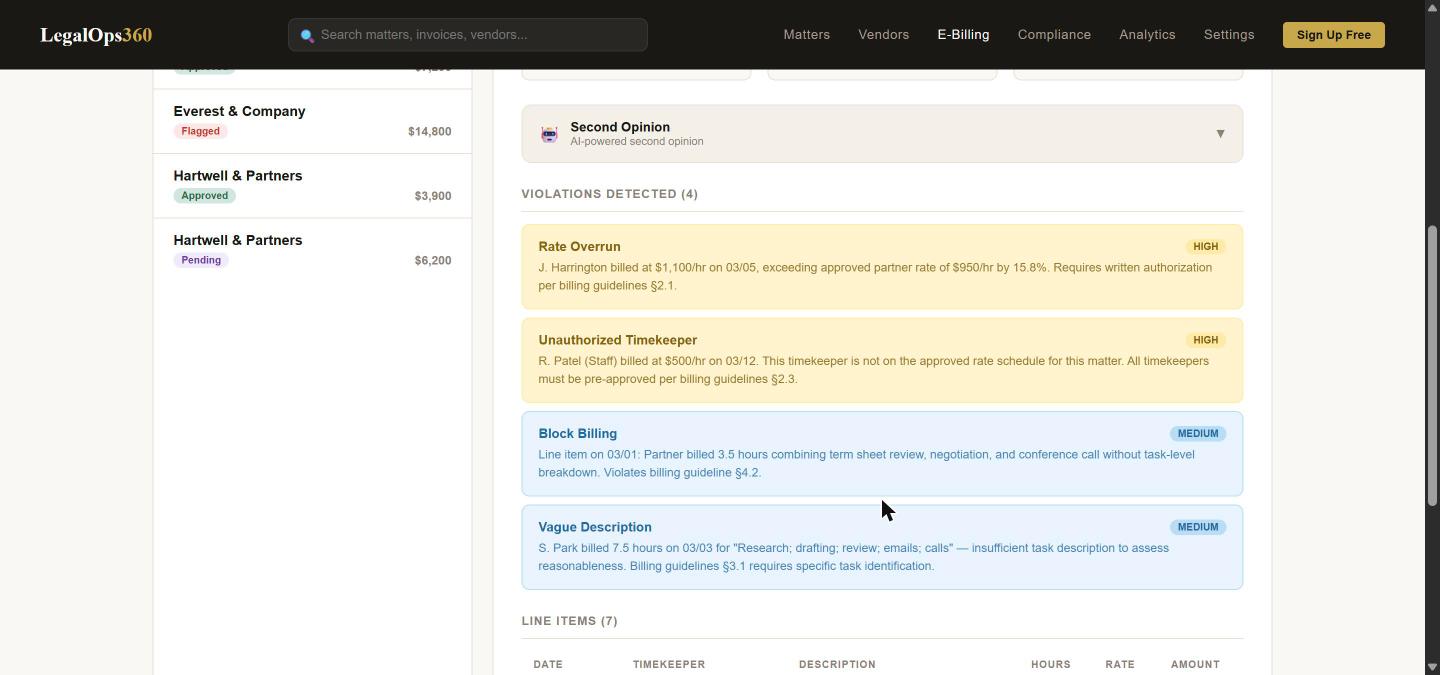
- The AI reads the invoice and lists any violations, such as block billing, rates above your caps, vague entries, duplicate billing, clerical tasks, excessive time, unauthorized timekeepers or rounding up.
- Check the vendor and amount, link the invoice to a matter if you like, and Save.
- Open the invoice to review each violation. Approve it, or Flag it for discussion with the firm.
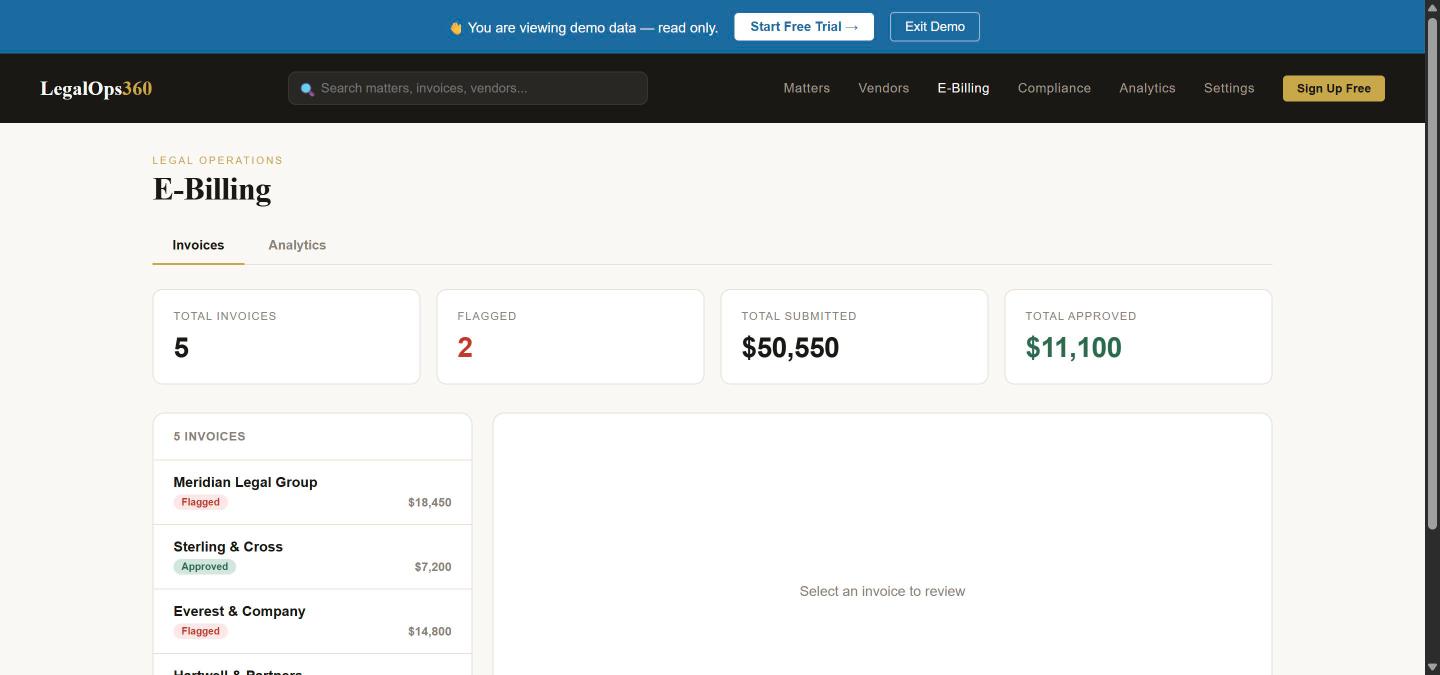
Upload many invoices (LEDES): use the LEDES98B .txt option to import one or several files at once. Each file is parsed and shown for review before import.
Get a second opinion on an analysis: on a reviewed invoice choose a mode: Expand (adjacent risks), Critique (weak spots), Debate (a case for and against) or Fact-check (checks the analysis against standard billing guidelines, such as ABA and ACC, and rates how reliable the analysis is).
Your billing rules: rate caps and which violation types to check can be set per organization. If none are set, sensible defaults apply: Partner $900, Senior Associate $700, Associate $500, Paralegal $250 per hour.
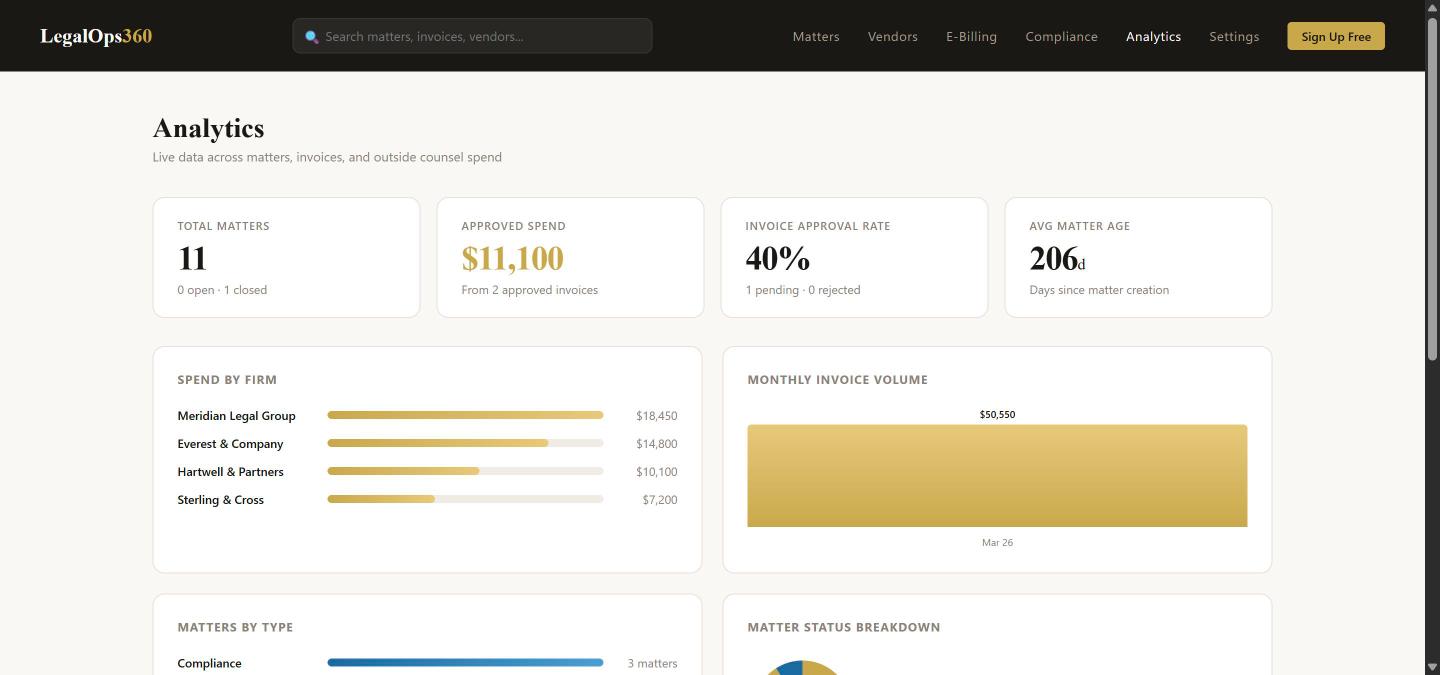
The Analytics tab in E-Billing shows approval rate, flag rate, and spend by firm, by matter and by month.
5. Compliance: review a contract
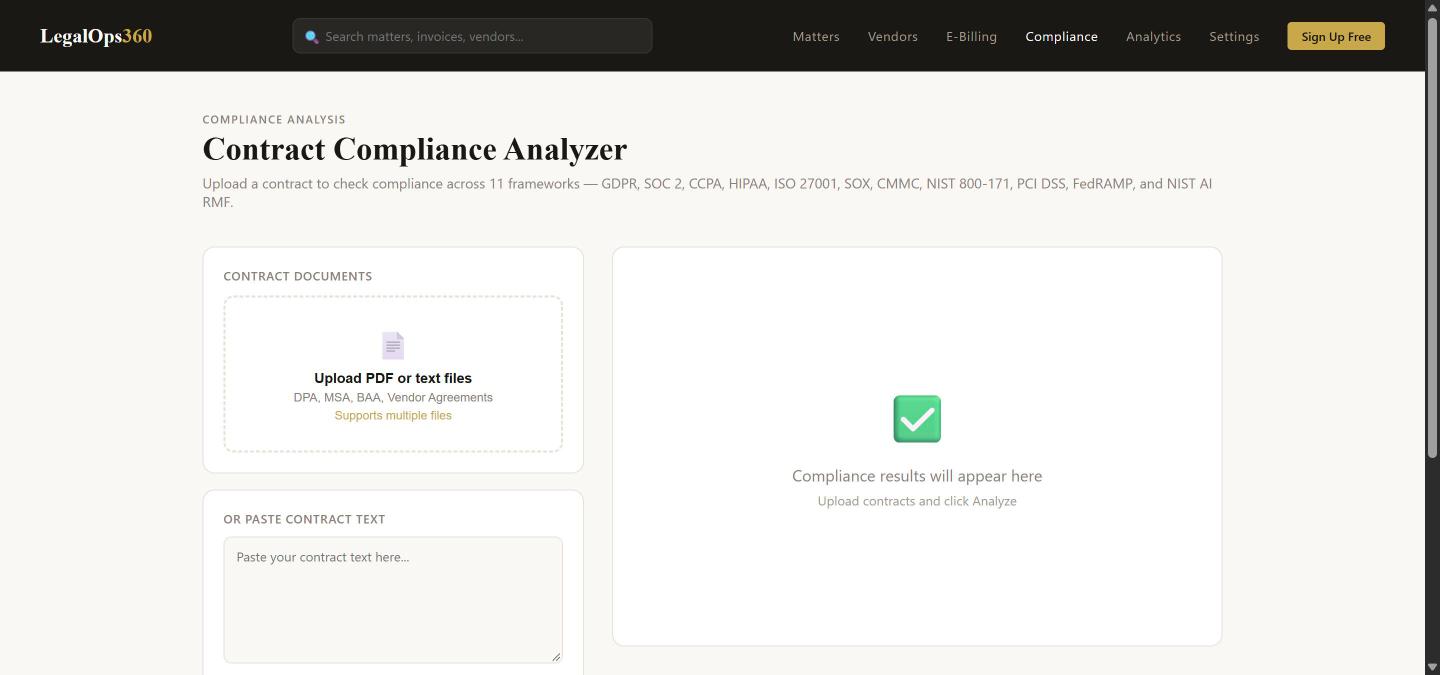
- Open Compliance.
- Paste the contract text, or upload one or more files.
- Choose Analyze. The contract is checked against ten frameworks: GDPR, SOC 2, CCPA, HIPAA, ISO 27001, SOX, CMMC, NIST 800-171, PCI DSS and FedRAMP.
- For each framework you see a score, the gaps found, and suggested replacement clause language you can insert into the agreement. Frameworks that do not apply to the contract type are marked as such.
6. Analytics
Analytics gives dashboards of outside counsel spend by matter, firm and practice area, with budget variance and trends. Use it for reports to your General Counsel or CFO.
7. Settings
Settings, then Organization, shows your organization details and support contact. Users shows your team and lets you invite colleagues.
Good to know
- AI assists, you decide. Analyses are aids. Review them before you act on them or send them to a law firm.
- Your data. Contract and invoice text is sent to an AI provider only to produce the analysis. We do not sell your data or use it to train AI models. Contracts you analyze are not kept unless you save the results, and invoices you save are stored in your own organization's space, which other organizations cannot see. See our Trust page and Privacy Policy for details.
- PDF tips. If an invoice upload fails, make sure the PDF contains selectable text. A "print to PDF" copy of the invoice usually works.
- Need help? Email info@legalops360.ai.